How to send TradingView alerts to MetaTrader (MT4/MT5)
By the TradeAon team · Published · Updated · 5 min read
TradingView is where a lot of traders build and test their strategies, but TradingView cannot place orders with your broker on its own. To turn a chart alert into a real position on MetaTrader 4 or 5, you need something that listens for the alert and executes it. This guide walks through exactly how that connection works and how to set it up end to end.
- TradingView alerts can carry a webhook — an HTTP request fired the instant your alert triggers.
- A routing service receives that webhook and forwards the order to an Expert Advisor (EA) running inside MetaTrader.
- The alert message is a small JSON payload describing the symbol, action, volume and (optionally) stop-loss / take-profit.
- No DLLs or bridge files are needed — the EA polls your account and executes matching signals.
Why TradingView can't trade for you
TradingView is a charting and analysis platform. It can watch the market, run your Pine Script strategy, and fire an alert when your conditions are met — but it has no direct connection to most retail brokers. It cannot log into your MetaTrader account and click "Buy" for you.
What it can do is send a message to the outside world the moment an alert fires. That message is called a webhook: a small HTTP POST request delivered to any URL you choose. The trick to automated trading is giving TradingView a URL that belongs to a service which knows how to talk to MetaTrader on your behalf.
How the connection works
The full path from chart to fill has three moving parts:
- TradingView — evaluates your strategy and fires an alert with a webhook attached.
- A routing service (such as TradeAon) — receives the webhook at a private URL, validates it, and turns it into an order instruction.
- An Expert Advisor (EA) — a small program running inside your MetaTrader terminal that picks up the instruction and places the trade on your broker account.
Because the EA lives inside MetaTrader and connects to the broker itself, you never hand over your broker password to anyone. The routing service only ever sees the order details you chose to send.
What you need before you start
- A TradingView account on a plan that allows webhook alerts (webhooks are a paid TradingView feature).
- A MetaTrader 4 or 5 terminal logged into your broker account, with "Allow Algo/Automated Trading" enabled.
- A routing account and license key. With TradeAon you sign in with Google, and the dashboard gives you a per-account webhook URL and a license key that starts with
whk_.
Most traders keep the MetaTrader terminal on a low-cost VPS so it stays online around the clock — see our guide on keeping MetaTrader online 24/7.
Step 1 — Create a TradingView alert
Open the chart you want to trade, click the alarm-clock Alert icon, and set your condition. This can be a manual price cross, an indicator, or a signal from your Pine Script strategy. Under Notifications, tick Webhook URL. This is the box that turns a passive notification into an executable signal.
Step 2 — Add your webhook URL
Paste the webhook URL from your TradeAon dashboard into the Webhook URL field. Each account gets its own endpoint, so trades from different strategies never collide. The URL looks like this:
POST https://jayferj4607.fun/whk_mt4us30demo7
Keep this URL private — the license key in it is the credential that identifies your account, and TradeAon always validates it before touching your broker connection. If you want an extra layer, you can also turn on an optional secret field in your account settings; it's off by default, so nothing changes unless you set one.
Step 3 — Format the alert message
The alert message is where you describe the trade. TradeAon reads a small JSON object with a handful of fields:
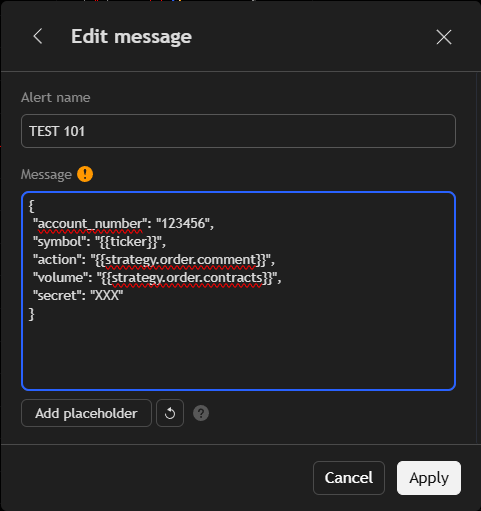
{
  "account_number": "123456",
  "symbol": "US30",
  "action": "BUY",
  "volume": 1.00,
  "stop_loss": 38500,
  "take_profit": 39000,
  "secret": "your-secret-here"
}
The action field accepts BUY, SELL, CLOSE, CLOSE_ALL, CLOSE_BUY and CLOSE_SELL, so a single strategy can both open and manage positions. Market execution is the default; pending orders (Buy/Sell Limit and Buy/Sell Stop) are also supported by adding order_type and price fields to the same payload. If your broker names the symbol differently (for example GOLD instead of XAUUSD), automatic symbol mapping resolves it for you — see symbol mapping explained. For the full field reference and how to build the message from a Pine Script strategy, read TradingView webhook JSON syntax.
Step 4 — Install the EA
Download the TradeAon Expert Advisor from your dashboard and drop it onto any chart in MetaTrader. Open its inputs, paste your license key, and allow live/algo trading. The EA connects back to the routing service, confirms your account, and begins listening for signals. One EA handles both webhook execution and copy trading, so you don't need a separate tool for each.
Verifying the first trade
Back in TradingView, use the alert's "Test" or trigger the condition manually. Within a second or two you should see the order appear in MetaTrader, and a matching entry in your TradeAon event log. The dashboard shows every signal it received, whether it was accepted, and how it was executed — which makes it easy to confirm the pipe is connected before you trust it with a live strategy.
Troubleshooting
- Nothing happens: confirm the alert actually fired in TradingView, and that "Webhook URL" was ticked (not just a pop-up notification).
- Signal received but no trade: check that the EA is attached, algo trading is enabled, and the symbol exists on your broker.
- Wrong volume or symbol: review the JSON message and your symbol mapping.
A fuller list is in common webhook errors and how to fix them.
Frequently asked questions
Do I need to know how to code? No. If you can write a TradingView alert and copy a JSON snippet, you can send signals. Pine Script only matters if you want a strategy to build the message dynamically.
Is my broker password shared? No. The EA connects to your broker from inside MetaTrader; the routing service only ever handles the order details you send.
Can one alert trade several accounts? Yes — that is what copy trading is for. See copying trades between brokers.